1. Confirm the connection
Complete the Windows or Mac setup first. In Wormhole, confirm that the correct device is selected and is connected by USB.
- Keep the device unlocked for the first location request.
- Developer Mode must be enabled.
- Wi-Fi device connections cannot be used for virtual location.
2. Choose the location
You can define the point in any of three ways:
- Select or search for a place on the map, then copy the selected latitude and longitude into Wormhole.
- Enter known latitude and longitude values directly.
- Select a previously saved item from Favorite Locations.
Latitude must be between −90 and 90; longitude must be between −180 and 180.
3. Apply and verify
- Check the coordinates and selected device.
- Choose Set Location.
- Wait for the success message.
- Open Maps or the location-aware app you are testing on the device.
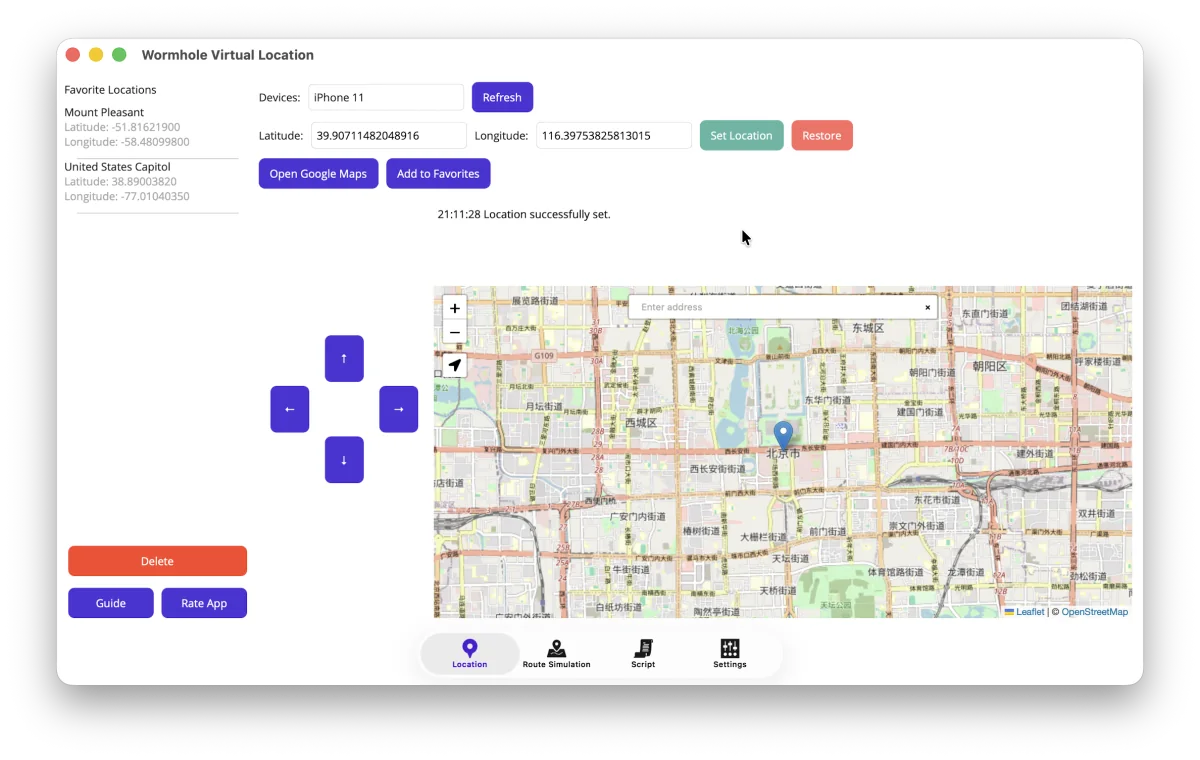
4. Adjust with the GPS joystick
After setting a starting point, use the arrow buttons to move the simulated coordinate north, south, west, or east by one app-defined step. Each press updates both the coordinates in Wormhole and the connected device.
For precise distances or a repeatable sequence, use Wormhole Script instead.
5. Save a favorite
- Enter or select valid coordinates.
- Choose Add to Favorites.
- Give the location a recognizable name.
Favorites are stored for quick access in later sessions. Saving a favorite does not set it on the device until you choose Set Location.
6. Restore the real location
- Keep the device connected and selected.
- Stop any running route or script first.
- Return to the Location tab and choose Restore.
- Wait for the confirmation before disconnecting.
Good test hygiene: always restore the real location when a test session ends.
If the location does not change
Refresh the device list, confirm Developer Mode, and try again while the device is unlocked. If the connection still fails, follow the device troubleshooting checklist.