Before you begin
- A Mac running macOS 14 or later.
- Wormhole Virtual Location from the Mac App Store.
- Wormhole Device Manager 2.1.0 from this website.
- An iPhone or iPad running iOS/iPadOS 17–26 and a USB data cable.
1. Install the Mac App Store app
Download Wormhole Virtual Location from the Mac App Store and open it once. The app will direct you to Device Manager if the local bridge is not available.
2. Install Device Manager
- Open the official Device Manager download page.
- Download version 2.1.0 and extract the ZIP file.
- Double-click
WormholeDeviceManager-2.1.0.pkgand follow the macOS installer. - Open Wormhole Device Manager from Applications once. Its status appears in the menu bar.
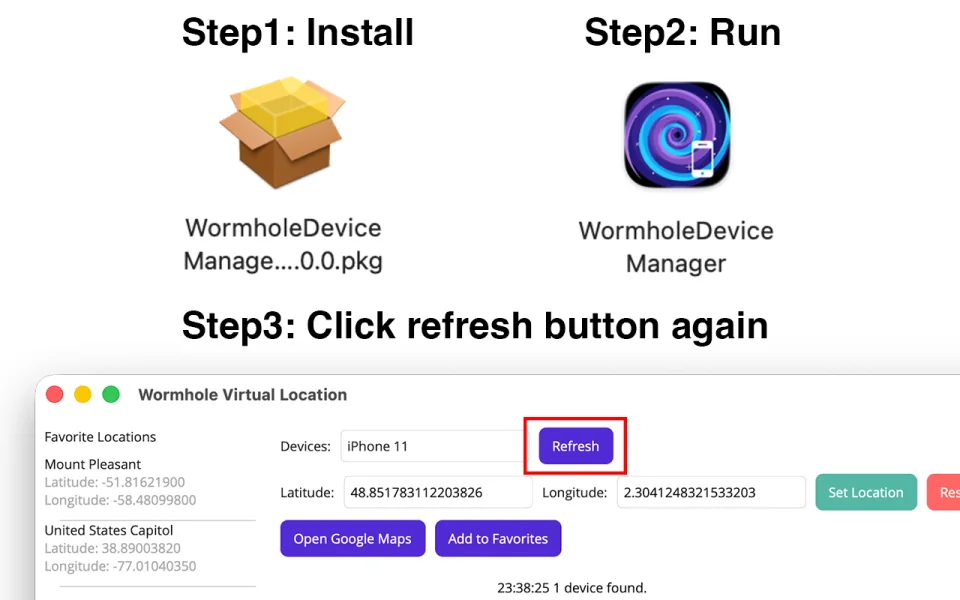
Keep only one installed copy of Device Manager. Multiple old copies can make it unclear which local process the store app is contacting.
3. Enable Developer Mode
- On the iPhone or iPad, open Settings → Privacy & Security → Developer Mode.
- Turn Developer Mode on and complete the device prompts. A restart may be required.
- If the setting is hidden, connect the device and follow the prompt shown by Wormhole first.
4. Connect and trust the Mac
- Connect the device directly with a USB data cable.
- Unlock the device and accept Trust This Computer.
- Keep Device Manager running in the menu bar.
- Return to Wormhole Virtual Location and use Refresh if needed.
5. Verify and restore
- Select the connected device in Wormhole.
- Choose a nearby map point and select Set Location.
- Confirm the result in Maps on the device.
- Choose Restore before disconnecting when the test is complete.
The setup is complete. Device Manager will be started by Wormhole when it is needed in future sessions.
If Wormhole cannot find Device Manager
Open Device Manager directly from Applications and check its menu bar status. If an older copy is installed, remove that copy before reinstalling the current package. Continue with the troubleshooting guide if the device still does not appear.