Before you begin
- A Windows 10 or Windows 11 PC.
- Wormhole Virtual Location from Microsoft Store.
- An iPhone or iPad running iOS/iPadOS 17–26.
- A USB data cable and access to unlock the device.
No separate Manager: the Windows app already includes the local device-management component.
1. Install Wormhole and Apple Devices
Install Wormhole Virtual Location from Microsoft Store. Wormhole should run as your normal Windows user; do not use Run as administrator.
If the computer has never connected to an Apple device, install Apple Devices. It provides the Windows device driver and is also the simplest way to verify that Windows can see the iPhone or iPad.
2. Enable Developer Mode on the device
- On the iPhone or iPad, open Settings.
- Open Privacy & Security, then Developer Mode.
- Turn Developer Mode on and follow the device prompts. A restart may be required.
If Developer Mode is not yet visible, connect the device, open Wormhole, and follow its prompt to reveal the setting. Return to Settings after the prompt completes.
3. Connect and trust the computer
- Connect the device directly to the PC with a USB data cable.
- Unlock the device and choose Trust when asked whether to trust the computer.
- Enter the device passcode if requested.
- Open Apple Devices and confirm that the device appears there.
A charging-only cable can power the device but cannot carry the USB data Wormhole needs.
4. Set a test location
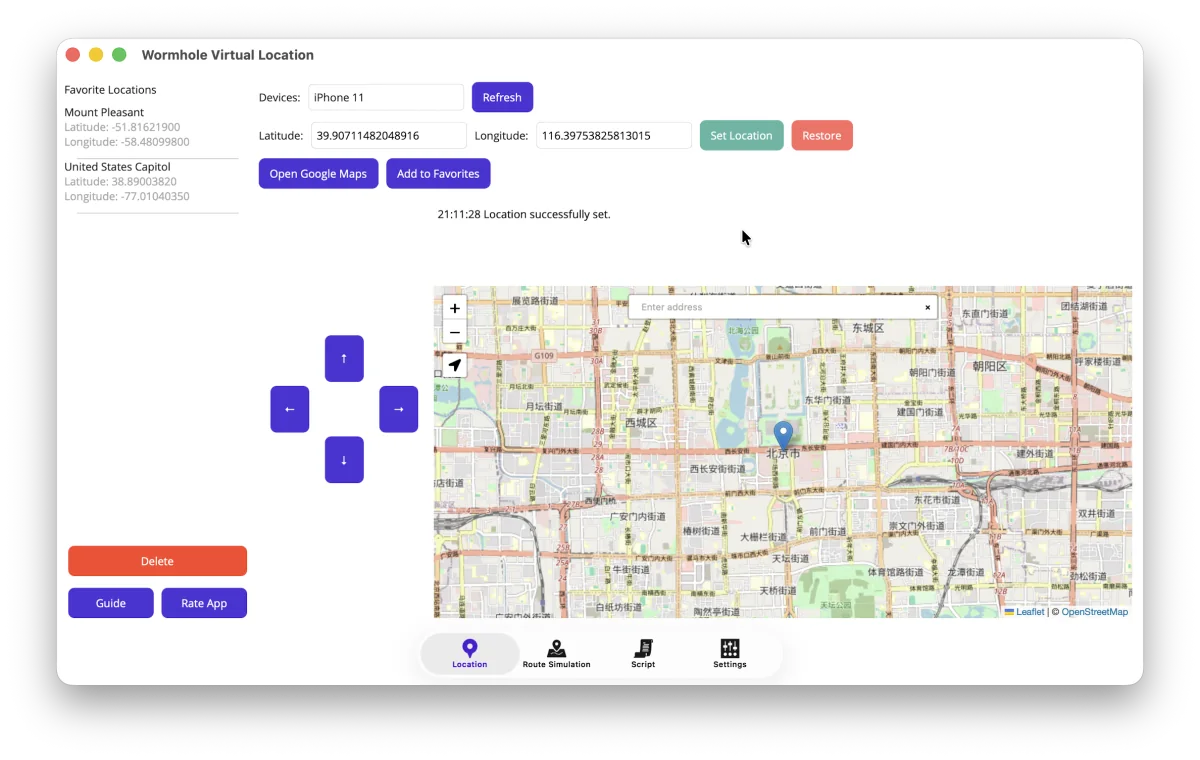
- Open Wormhole Virtual Location.
- Choose the connected device and use Refresh if it is not listed yet.
- Search for or select a nearby point on the map.
- Choose Set Location.
- Open Maps on the device to confirm the location.
5. Restore the real location
When the test is finished, keep the device connected and selected, then choose Restore. Confirm the success message before disconnecting the cable.
Your first connection is complete. Continue with single-point location or route simulation.
If the device does not appear
Keep it unlocked, reconnect the cable, verify it in Apple Devices, and use Refresh in Wormhole. See the troubleshooting guide for the complete checklist.