Important route limitation
Automatic route calculation only supports a start and destination within the current country. Do not use a cross-border route. If either point is in another country, choose two points in your current country and calculate again.
1. Connect the device
Connect by USB, enable Developer Mode, and select the correct device in Wormhole. Finish the Windows or Mac setup if this is your first session.
2. Select the start and end points
- Open the Route Simulation tab.
- Select a map location and choose Set As Start Location.
- Select another location in the same country and choose Set As End Location.
- Check the displayed coordinates before calculating.
3. Calculate the path
- Choose Calculate Route.
- Wait for the path and distance to appear on the map.
- If the app reports that the route is too short, move the endpoint farther away and calculate again.
The app uses the calculated path for all three pace choices; the pace controls how quickly the device advances along it.
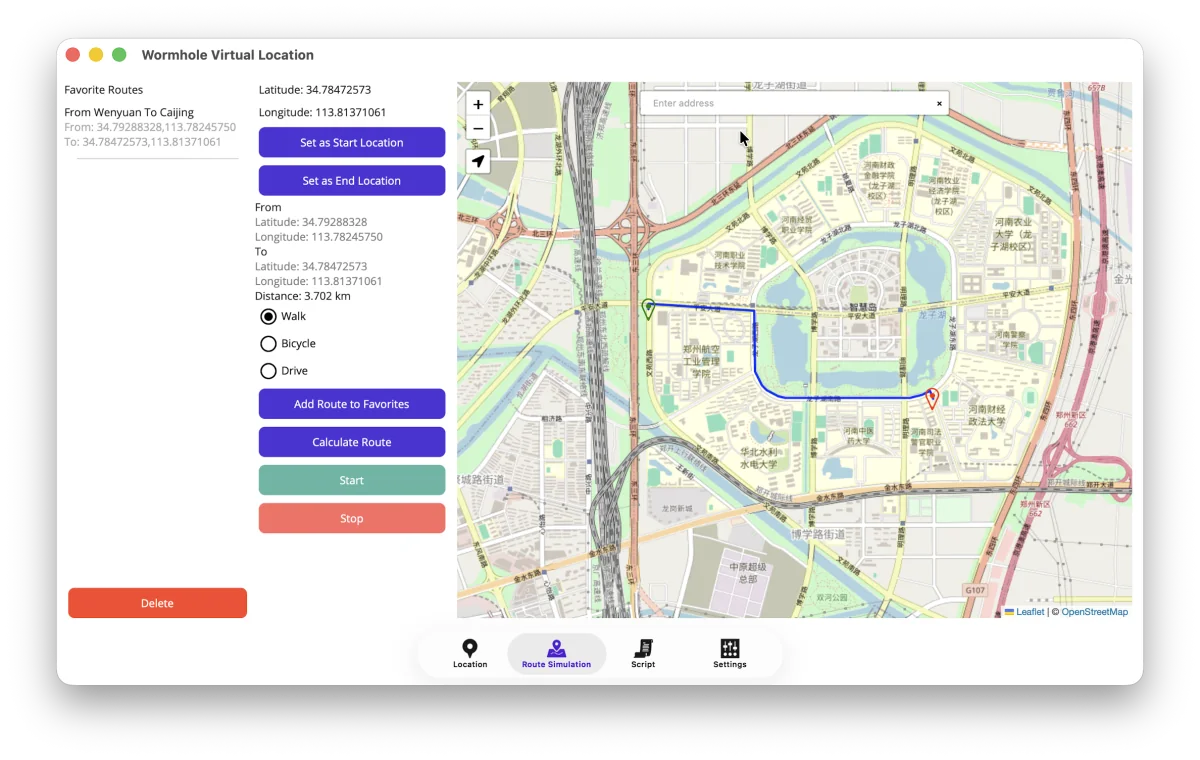
4. Choose the movement pace
- Walk advances at the slowest simulated pace.
- Bicycle advances at a medium simulated pace.
- Drive advances at the fastest simulated pace.
These controls simulate a pace for testing. They are not turn-by-turn navigation or a guarantee of real-world travel time.
5. Start, monitor, and stop
- Choose Start.
- Keep Wormhole and Device Manager, when used on Mac, running during the route.
- Watch the current marker advance on the desktop map and verify changes on the device.
- Choose Stop whenever you need to end the route early.
6. Save a route for later
After defining valid endpoints, choose Add Route to Favorites and give it a name. Loading a favorite restores its endpoints; calculate the route again before starting it.
7. Restore the real location
Stop the route, return to the Location tab, and choose Restore. Wait for the success message before disconnecting the device.
For an exact custom sequence instead of a calculated route, use Wormhole Script.